

 Sandbox runs generated code in a sandbox isolated from your computer and Quor infrastructure.
Your organization controls the information Sandbox can access and the actions it can take.
See Sandbox Architecture for the full trust and network model.
Sandbox runs generated code in a sandbox isolated from your computer and Quor infrastructure.
Your organization controls the information Sandbox can access and the actions it can take.
See Sandbox Architecture for the full trust and network model.
Start a Sandbox session
Each new session gets a separate workspace where Sandbox can create files, run code, and preview web apps. It can also use company knowledge, User Library files, available Skills, and connected Apps to complete your request.
If you don’t see Sandbox in your Quor sidebar, it hasn’t been enabled for your workspace.
Ask an admin to turn on Sandbox and confirm that a supported model provider is available.
Write a strong first prompt
Pick a model, describe the result you want, and provide the context Sandbox should use. You can’t change models after sending the first message, so choose one before you send.
Example: build an all-hands deck
Build an all-hands slide deck for Q2. Pull the wins from Slack, reference prospects and customers from HubSpot, cite figures from our sales sync doc, and use our all-hands template.Sandbox can gather the requested context, follow the presentation Skill and your company template, delegate slides to subagents, and assemble the final deck.
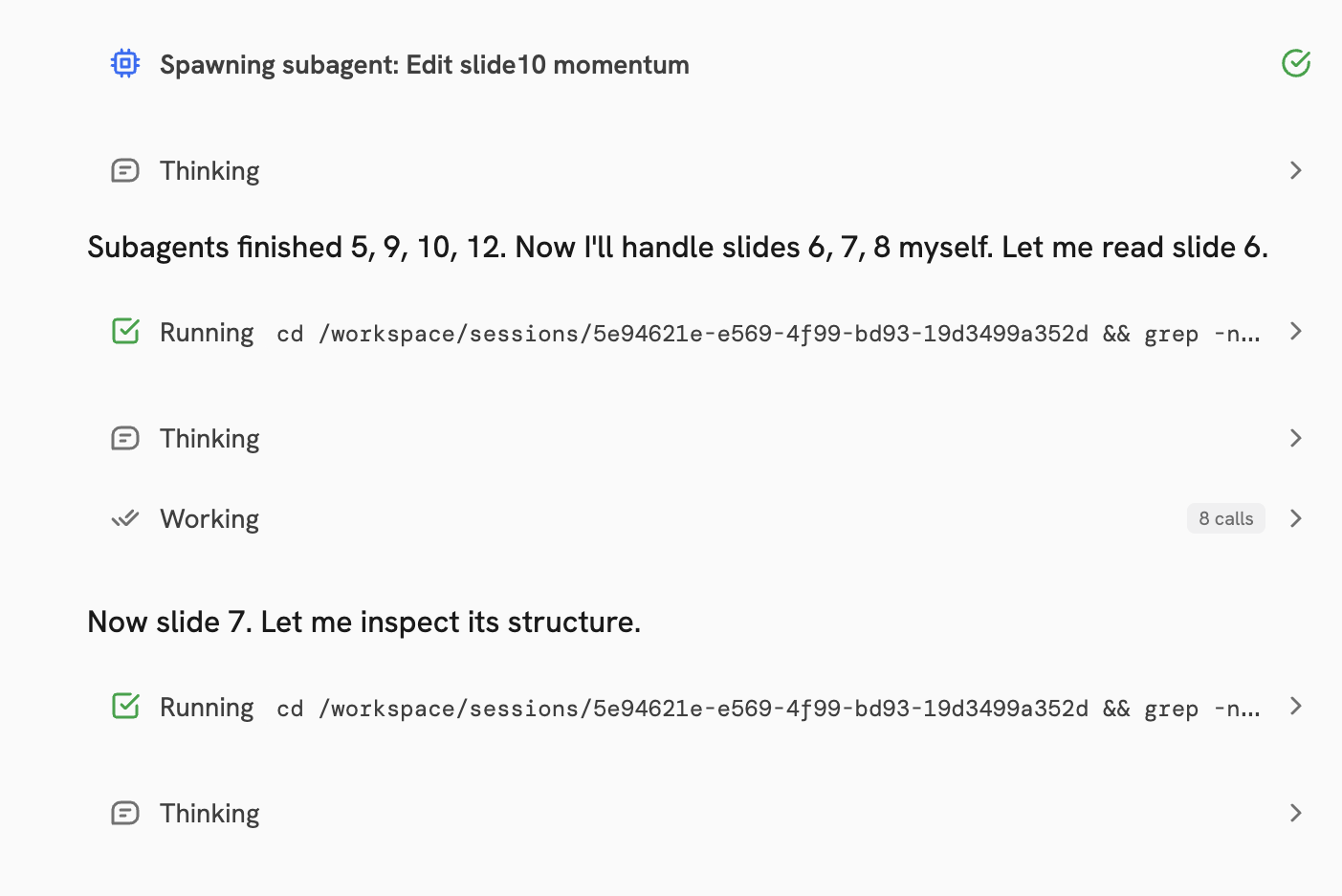
Follow the work
The chat panel streams Sandbox’s progress while it works:
Open a subagent from the header menu to read its transcript. Your messages still go to the main session.
A status in the header shows when the sandbox is initializing, running, or restoring.
You can guide the run at any time:
Give Sandbox context
Sandbox can start with only a prompt, but concrete references help it find the right information and match the result you have in mind. Use + in the input bar to attach files or select a Skill or App. You can also drag files into the chat.
Session attachments stay with one session. User Library files remain available for reuse across sessions.
When the Browser Skill is available, Sandbox can open public websites, follow links, interact with pages,
and take screenshots. It uses its own browser in the sandbox, not your browser session or saved logins.
File and storage limits
File and storage limits
These are the default limits. Your admin can adjust them for self-hosted deployments.Session attachments
User Library
The User Library accepts regular files and ZIP uploads.
ZIP files are extracted so Sandbox can work with the files inside.
Review the result
Open Output from the upper-right corner of the session to inspect what Sandbox created. You can download individual files, download a folder or web app as a ZIP file,
export Markdown as a .docx file, and preview images, PDFs, presentations, and text files.
You can download individual files, download a folder or web app as a ZIP file,
export Markdown as a .docx file, and preview images, PDFs, presentations, and text files.
Share a web app
Web apps run in the sandbox and are shared through Quor rather than exposed directly. Select Share in the Preview tab, then choose who can open the app:
Sharing includes the generated web app only. It does not share the conversation or other session files.
Refine the result
Continue in the same session to request changes in plain language:- Update the layout: “Add a filter for the last 30 days and move the summary cards to the top.”
- Change the writing: “Rewrite the executive summary for a non-technical audience and cut it to three sentences.”
- Prepare the final file: “Add a one-paragraph summary to the report and save the final version to
outputs/.”
Go further with Sandbox
Skills
Give Sandbox reusable instructions, examples, templates, and helper files.
Apps
Connect external services for live information and approved actions.
Scheduled Tasks
Run a tested Sandbox prompt automatically on a recurring schedule.
For admins
Enable Sandbox and configure models, Skills, Apps, and governance controls.