# Overview
Turn a goal into finished work with an AI coworker in a secure sandbox
Sandbox is an AI coworker that can take a goal from prompt to finished deliverable. It plans the work, gathers context,
writes and runs code, creates files, and iterates on the result in a secure sandbox.
| Ask Sandbox to | Example result |
| --------------------------------- | --------------------------------------------------------------------- |
| **Research and synthesize** | A customer brief grounded in company knowledge and current App data. |
| **Create a polished deliverable** | A presentation, report, spreadsheet, document, image, or export file. |
| **Build an interactive tool** | A dashboard, data explorer, calculator, or other shareable web app. |
| **Complete work in another tool** | A drafted email, updated project issue, saved file, or pull request. |
 Looking to enable Sandbox for your Quor deployment? See the [deployment](/deployment/local/craft)
and [admin](/admins/managing_features/craft) guides.
Sandbox runs generated code in a sandbox isolated from your computer and Quor infrastructure.
Your organization controls the information Sandbox can access and the actions it can take.
See [Sandbox Architecture](/security/architecture/craft) for the full trust and network model.
## Start a Sandbox session
Each new session gets a separate workspace where Sandbox can create files, run code, and preview web apps.
It can also use company knowledge, User Library files, available Skills, and connected Apps to complete your request.
Looking to enable Sandbox for your Quor deployment? See the [deployment](/deployment/local/craft)
and [admin](/admins/managing_features/craft) guides.
Sandbox runs generated code in a sandbox isolated from your computer and Quor infrastructure.
Your organization controls the information Sandbox can access and the actions it can take.
See [Sandbox Architecture](/security/architecture/craft) for the full trust and network model.
## Start a Sandbox session
Each new session gets a separate workspace where Sandbox can create files, run code, and preview web apps.
It can also use company knowledge, User Library files, available Skills, and connected Apps to complete your request.
 If you don't see Sandbox in your Quor sidebar, it hasn't been enabled for your workspace.
Ask an admin to turn on Sandbox and confirm that a supported model provider is available.
### Write a strong first prompt
Pick a model, describe the result you want, and provide the context Sandbox should use.
If you don't see Sandbox in your Quor sidebar, it hasn't been enabled for your workspace.
Ask an admin to turn on Sandbox and confirm that a supported model provider is available.
### Write a strong first prompt
Pick a model, describe the result you want, and provide the context Sandbox should use.
 You can't change models after sending the first message, so choose one before you send.
| Include | What to tell Sandbox |
| -------------------------- | ------------------------------------------------------------------------------- |
| **End product** | Whether you need a web app, report, deck, brief, data explorer, or export file. |
| **Audience and purpose** | Who will use the result and what they need from it. |
| **Source material** | Company sources, connected Apps, examples, or files Sandbox should reference. |
| **Important requirements** | The sections, tone, charts, filters, file names, or output format that matter. |
Sandbox is designed to keep moving and often makes reasonable assumptions.
Put important constraints in the first prompt, then refine the result as it works.
### Example: build an all-hands deck
> Build an all-hands slide deck for Q2. Pull the wins from Slack, reference
> prospects and customers from HubSpot, cite figures from our sales sync doc,
> and use our all-hands template.
Sandbox can gather the requested context, follow the presentation Skill and your company template,
delegate slides to subagents, and assemble the final deck.
You can't change models after sending the first message, so choose one before you send.
| Include | What to tell Sandbox |
| -------------------------- | ------------------------------------------------------------------------------- |
| **End product** | Whether you need a web app, report, deck, brief, data explorer, or export file. |
| **Audience and purpose** | Who will use the result and what they need from it. |
| **Source material** | Company sources, connected Apps, examples, or files Sandbox should reference. |
| **Important requirements** | The sections, tone, charts, filters, file names, or output format that matter. |
Sandbox is designed to keep moving and often makes reasonable assumptions.
Put important constraints in the first prompt, then refine the result as it works.
### Example: build an all-hands deck
> Build an all-hands slide deck for Q2. Pull the wins from Slack, reference
> prospects and customers from HubSpot, cite figures from our sales sync doc,
> and use our all-hands template.
Sandbox can gather the requested context, follow the presentation Skill and your company template,
delegate slides to subagents, and assemble the final deck.
 ## Follow the work
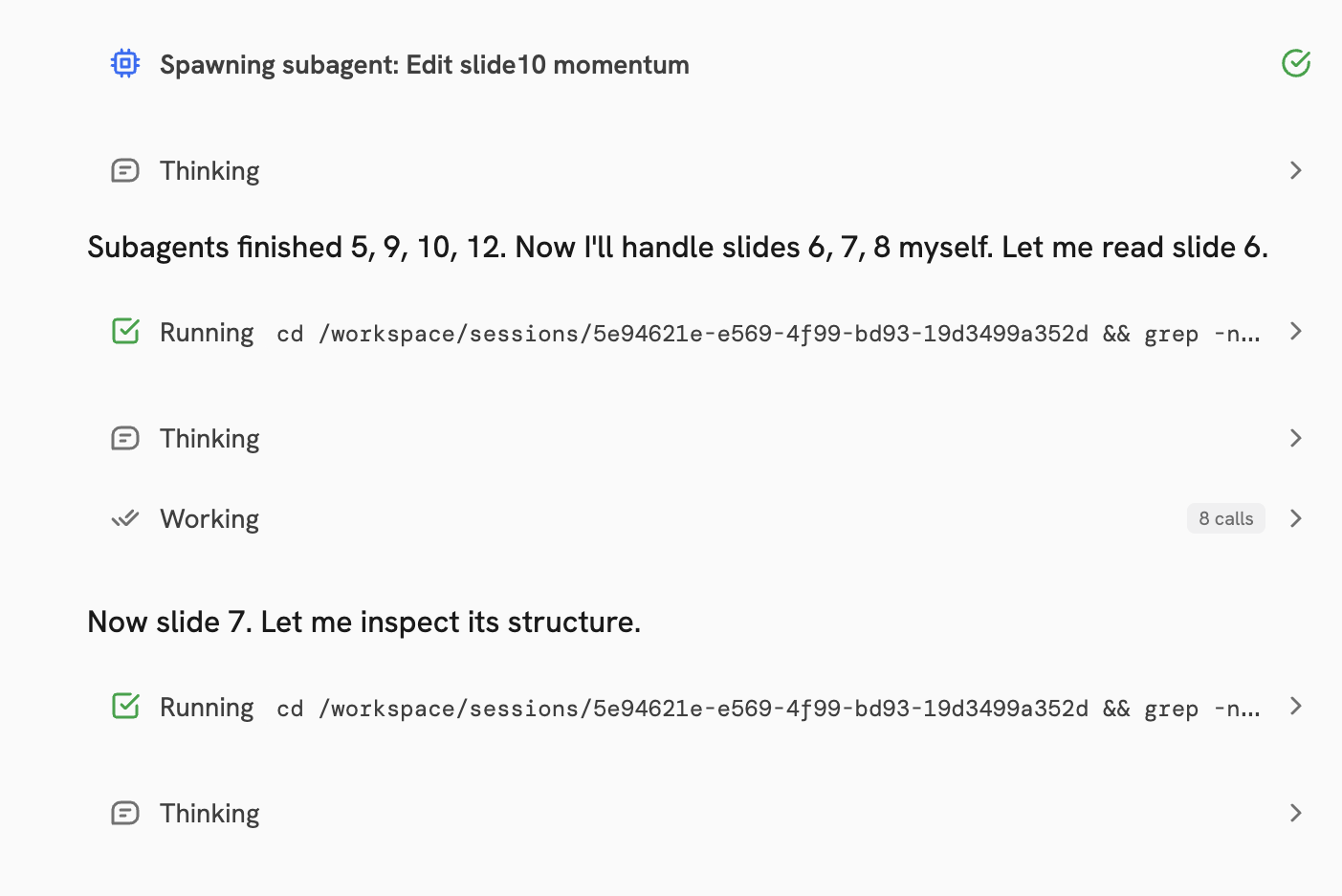
The chat panel streams Sandbox's progress while it works:
| Activity | What it shows |
| ------------- | ---------------------------------------------------------------------------------------------------------- |
| **Tasks** | The plan Sandbox is working through, checked off as it progresses. |
| **Thinking** | How Sandbox is approaching the next step. |
| **Working** | Tool calls, such as searching company knowledge or reading a file from an App. |
| **Running** | Commands in the sandbox, such as writing code, installing packages, or starting a development server. |
| **Subagents** | Focused agents working in parallel on parts of a larger job, such as individual slides or report sections. |
Open a subagent from the header menu to read its transcript. Your messages still go to the main session.
A status in the header shows when the sandbox is initializing, running, or restoring.
You can guide the run at any time:
| Control | What it does |
| --------------------- | ---------------------------------------------------------------------------------------------------- |
| **Approve an action** | Lets you review an App action when your organization's policy requires approval. |
| **Queue a follow-up** | Gives Sandbox another instruction to pick up after its current turn. |
| **Interrupt** | Stops the current run when you press **Esc**. Your messages and files remain so you can redirect it. |
## Give Sandbox context
Sandbox can start with only a prompt,
but concrete references help it find the right information and match the result you have in mind.
Use **+** in the input bar to attach files or select a Skill or App. You can also drag files into the chat.
| Source | Best for |
| ----------------------- | ------------------------------------------------------------------------ |
| **Quor knowledge** | Company content you already have permission to access. |
| **Public web** | Current public information and websites Sandbox needs to navigate. |
| **Session attachments** | Files needed only for this session, such as a CSV, PDF, notes, or image. |
| **User Library** | Reusable files you want available across sessions, such as templates. |
| **Skills** | Reusable instructions, examples, and files that teach Sandbox a method. |
| **Apps** | Live information and approved actions in connected external services. |
Session attachments stay with one session. User Library files remain available for reuse across sessions.
When the Browser Skill is available, Sandbox can open public websites, follow links, interact with pages,
and take screenshots. It uses its own browser in the sandbox, not your browser session or saved logins.
These are the default limits. Your admin can adjust them for self-hosted deployments.
**Session attachments**
| Limit | Default |
| ------------------------------ | ------- |
| Maximum file size | 50 MB |
| Maximum files per session | 20 |
| Maximum total size per session | 200 MB |
**User Library**
| Limit | Default |
| ------------------------ | ------- |
| Maximum file size | 500 MB |
| Maximum files per upload | 100 |
| Maximum total storage | 10 GB |
The User Library accepts regular files and ZIP uploads.
ZIP files are extracted so Sandbox can work with the files inside.
Don't upload secrets, private tokens, or production credentials as files.
Connect an [App](/overview/core_features/craft_apps) when Sandbox needs authenticated access to an external service.
Raw App credentials never enter the sandbox workspace.
## Review the result
Open **Output** from the upper-right corner of the session to inspect what Sandbox created.
| Tab | What it shows |
| ------------- | --------------------------------------------------------------------------------- |
| **Preview** | A live web app that updates as Sandbox changes its files. |
| **Files** | The full session workspace, including source code, data, and intermediate work. |
| **Artifacts** | Finished outputs intended for download or sharing, usually written to `outputs/`. |
## Follow the work
The chat panel streams Sandbox's progress while it works:
| Activity | What it shows |
| ------------- | ---------------------------------------------------------------------------------------------------------- |
| **Tasks** | The plan Sandbox is working through, checked off as it progresses. |
| **Thinking** | How Sandbox is approaching the next step. |
| **Working** | Tool calls, such as searching company knowledge or reading a file from an App. |
| **Running** | Commands in the sandbox, such as writing code, installing packages, or starting a development server. |
| **Subagents** | Focused agents working in parallel on parts of a larger job, such as individual slides or report sections. |
Open a subagent from the header menu to read its transcript. Your messages still go to the main session.
A status in the header shows when the sandbox is initializing, running, or restoring.
You can guide the run at any time:
| Control | What it does |
| --------------------- | ---------------------------------------------------------------------------------------------------- |
| **Approve an action** | Lets you review an App action when your organization's policy requires approval. |
| **Queue a follow-up** | Gives Sandbox another instruction to pick up after its current turn. |
| **Interrupt** | Stops the current run when you press **Esc**. Your messages and files remain so you can redirect it. |
## Give Sandbox context
Sandbox can start with only a prompt,
but concrete references help it find the right information and match the result you have in mind.
Use **+** in the input bar to attach files or select a Skill or App. You can also drag files into the chat.
| Source | Best for |
| ----------------------- | ------------------------------------------------------------------------ |
| **Quor knowledge** | Company content you already have permission to access. |
| **Public web** | Current public information and websites Sandbox needs to navigate. |
| **Session attachments** | Files needed only for this session, such as a CSV, PDF, notes, or image. |
| **User Library** | Reusable files you want available across sessions, such as templates. |
| **Skills** | Reusable instructions, examples, and files that teach Sandbox a method. |
| **Apps** | Live information and approved actions in connected external services. |
Session attachments stay with one session. User Library files remain available for reuse across sessions.
When the Browser Skill is available, Sandbox can open public websites, follow links, interact with pages,
and take screenshots. It uses its own browser in the sandbox, not your browser session or saved logins.
These are the default limits. Your admin can adjust them for self-hosted deployments.
**Session attachments**
| Limit | Default |
| ------------------------------ | ------- |
| Maximum file size | 50 MB |
| Maximum files per session | 20 |
| Maximum total size per session | 200 MB |
**User Library**
| Limit | Default |
| ------------------------ | ------- |
| Maximum file size | 500 MB |
| Maximum files per upload | 100 |
| Maximum total storage | 10 GB |
The User Library accepts regular files and ZIP uploads.
ZIP files are extracted so Sandbox can work with the files inside.
Don't upload secrets, private tokens, or production credentials as files.
Connect an [App](/overview/core_features/craft_apps) when Sandbox needs authenticated access to an external service.
Raw App credentials never enter the sandbox workspace.
## Review the result
Open **Output** from the upper-right corner of the session to inspect what Sandbox created.
| Tab | What it shows |
| ------------- | --------------------------------------------------------------------------------- |
| **Preview** | A live web app that updates as Sandbox changes its files. |
| **Files** | The full session workspace, including source code, data, and intermediate work. |
| **Artifacts** | Finished outputs intended for download or sharing, usually written to `outputs/`. |
 You can download individual files, download a folder or web app as a ZIP file,
export Markdown as a .docx file, and preview images, PDFs, presentations, and text files.
### Share a web app
Web apps run in the sandbox and are shared through Quor rather than exposed directly.
Select **Share** in the Preview tab, then choose who can open the app:
| Scope | Access |
| ---------------- | ------------------------------------------ |
| **Private** | Only you can open the shared app. |
| **Organization** | Anyone signed in to your Quor can open it. |
Sharing includes the generated web app only. It does not share the conversation or other session files.
### Refine the result
Continue in the same session to request changes in plain language:
- **Update the layout:** “Add a filter for the last 30 days and move the summary cards to the top.”
- **Change the writing:** “Rewrite the executive summary for a non-technical audience and cut it to three sentences.”
- **Prepare the final file:** “Add a one-paragraph summary to the report and save the final version to `outputs/`.”
## Go further with Sandbox
Give Sandbox reusable instructions, examples, templates, and helper files.
Connect external services for live information and approved actions.
Run a tested Sandbox prompt automatically on a recurring schedule.
Enable Sandbox and configure models, Skills, Apps, and governance controls.
You can download individual files, download a folder or web app as a ZIP file,
export Markdown as a .docx file, and preview images, PDFs, presentations, and text files.
### Share a web app
Web apps run in the sandbox and are shared through Quor rather than exposed directly.
Select **Share** in the Preview tab, then choose who can open the app:
| Scope | Access |
| ---------------- | ------------------------------------------ |
| **Private** | Only you can open the shared app. |
| **Organization** | Anyone signed in to your Quor can open it. |
Sharing includes the generated web app only. It does not share the conversation or other session files.
### Refine the result
Continue in the same session to request changes in plain language:
- **Update the layout:** “Add a filter for the last 30 days and move the summary cards to the top.”
- **Change the writing:** “Rewrite the executive summary for a non-technical audience and cut it to three sentences.”
- **Prepare the final file:** “Add a one-paragraph summary to the report and save the final version to `outputs/`.”
## Go further with Sandbox
Give Sandbox reusable instructions, examples, templates, and helper files.
Connect external services for live information and approved actions.
Run a tested Sandbox prompt automatically on a recurring schedule.
Enable Sandbox and configure models, Skills, Apps, and governance controls.